Fix: Application Control Policy (WDAC)
The Cowork Readiness Checker flagged a warning about an application control policy — also called a WDAC policy, AppLocker policy, or Windows Defender Application Control policy.
This means a security policy on your computer is preventing Cowork from running.
First, identify which situation applies to you:
Is this your personal computer or a work computer?
🏠 Personal computer
Application control policies are rare on personal PCs. If you're seeing this warning on a computer you own and manage yourself, it was most likely installed by a third-party security suite (such as certain antivirus or endpoint protection products).
👉 Jump to: Personal computer fix
🏢 Work computer (managed by an employer)
This is the most common scenario. Your IT department has applied a security policy that controls which applications are allowed to run. This is not something you can fix yourself — your IT department needs to make an exception for Cowork.
👉 Jump to: Work computer — contact IT
Personal computer fix
If you're on a personal PC and seeing this warning, your security software may have installed an application control policy.
Try these steps in order:
1. Check for third-party security software
Look for any of the following types of software installed on your computer:
- Endpoint protection or EDR software (examples: CrowdStrike Falcon, Carbon Black, Cylance, SentinelOne)
- Enterprise antivirus suites (examples: Symantec Endpoint Protection, McAfee Endpoint Security)
- Application whitelisting tools
Note
How to check what's installed
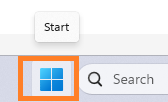
- Open the Start menu
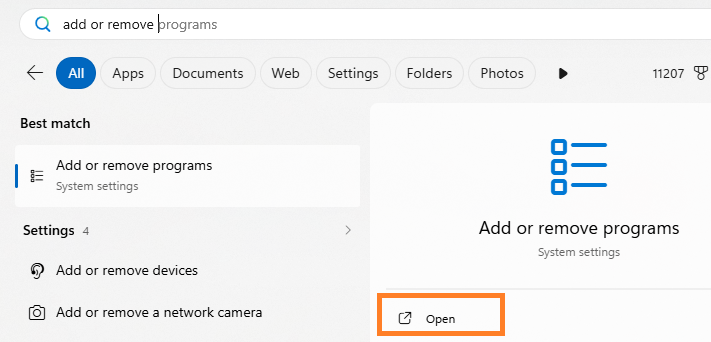
- Add or remove programs
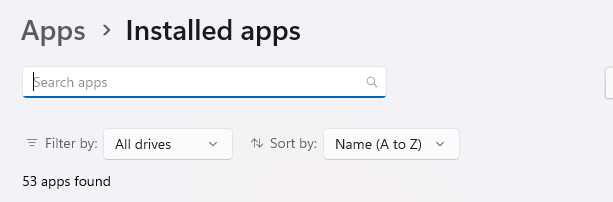
- Search apps or Scroll through the list and look for anything matching the types above.
If you find security software you don't recognize or didn't intentionally install
This software may have come pre-installed on your PC by a previous employer, or bundled with another program.
Consider:
- Uninstalling it if you no longer need it
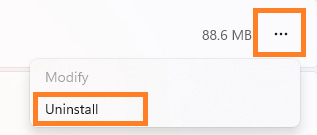
- To uninstall click the three dots and click Uninstall
- Contacting the software vendor's support to ask how to allow a specific application to run
3. Run the Cowork Readiness Checker again
✅ Warning gone? You're done — ready to install Cowork!
❌ Still seeing the warning?
This type of policy can be difficult to locate and remove without technical assistance. If you're not comfortable investigating further, consider reaching out to a trusted technical contact or IT professional for help.
Work computer — contact IT
If your computer is managed by your employer, your IT department needs to create an exception that allows Cowork to run. This is a standard request and your IT team will know what to do.
A pre-written email template is ready for you — it includes the technical details your IT department will need.
👉 IT email template: Application control policy exception
What to expect
Response times vary by organization. If your company has a helpdesk ticketing system, consider submitting a ticket as well as sending the email so your request is tracked.
Still stuck?
If you've tried the steps above and the warning is still there, the policy may be enforced at a level that requires direct IT intervention regardless of which computer you're using.
👉 Back to Windows Checker Errors hub
ArchieCur created in collaboration with Claude Sonnet 4.6 (Anthropic) · v1.0.0 · June 2026